When your business runs on cloud apps, VoIP, and card payments, a single internet outage can stop everything. Redundancy is your safety net. It means having a true backup path—so if one connection fails, another automatically takes over and your team keeps working. It’s good to have backup internet so you can have piece of mind.

free speed test by Fireline Broadband

backup internet with Fireline Broadband

Why redundancy is critical

  • Every minute offline can mean lost sales, delayed shipments, and frustrated customers.
  • Office apps, phones, and remote access all depend on a stable connection.
  • Local issues—construction cuts, fiber damage, equipment failure, or power problems—can bring even “fast” primary circuits to a halt..

Redundancy doesn’t just make the network faster; it makes your business more resilient.

Fireline’s approach:

Fireline designs backup internet around how your sites are built and how critical your uptime is—not around a one‑size‑fits‑all product.

Fiber (where available)

  • Dedicated, business‑grade fiber with symmetrical speeds for locations that need maximum capacity.
  • Ideal as a primary circuit, or as a secondary fiber path when true route diversity is possible.

Fixed wireless backup

  • High‑capacity microwave links from Fireline antennas on rooftops and mountain‑top sites, not from the same underground conduit as your fiber.
  • Creates a physically different path into your building, protecting you from common last‑mile problems like road work or backhoe cuts.

By combining these, you get what most “single‑technology” providers can’t offer: a fast, dedicated primary connection and a backup that doesn’t share its weak points.

backup internet with Fireline Broadband

How Fireline’s redundant designs protect you

Fireline builds redundancy around a few core principles:

Different paths, different risks

  • Primary fiber runs in the ground or on poles.
  • Backup fixed wireless travels through the air from a tower or rooftop.
  • A single construction accident, manhole problem, or damaged cable is far less likely to take out both at once.

Engineered failover

  • Your router or SD‑WAN device continuously monitors the primary circuit.
  • If performance drops or the link fails, traffic automatically fails over to the backup connection, often in seconds.
  • When the primary is healthy again, traffic moves back—no scrambling or manual reconfiguration.

Business‑grade performance

  • Dedicated bandwidth on both links, sized to keep core apps—VoIP, POS, VPN, warehouses, and clinics—running smoothly.
  • Symmetrical or near‑symmetrical speeds so uploads, backups, and video calls don’t grind to a halt on the backup.

backup internet with Fireline Broadband

Where Fireline outshines “best‑effort” backups

Shared cable as “backup”

  • May enter the building through the same route as your primary fiber.
  • Often oversubscribed and “best effort,” so performance drops exactly when everyone else in the area is also online.

Single LTE hotspot as backup

  • Fine for a handful of devices, but not for a full office, warehouse, or clinic.
  • Data caps and tower congestion make it a last resort, not a true business‑class failover.

Fireline uses dedicated fiber where it’s available and fixed wireless where diversity or reach is the priority, so your backup is engineered for business loads—not just “whatever’s left” on a consumer network

Examples of Fireline redundancy in the real world

Downtown office

  • Primary: dedicated fiber for day‑to‑day traffic and video meetings.
  • Backup: fixed wireless from a nearby rooftop, on different physical paths and power.
  • Result: construction cuts in the street trigger automatic failover, while staff keep working and callers never notice.

Warehouse or industrial site

  • Primary: fiber or licensed fixed wireless to handle scanners, WMS, cameras, and VoIP.
  • Backup: alternate fixed wireless path or secondary fiber where available.
  • Result: operations stay online even if a single tower, route, or cable is impacted.

Stop outages before they stop you. If your business can’t afford to go dark when someone digs up a fiber line or a local outage hits, it’s time to treat backup internet as a core requirement, not an afterthought.

backup internet with Fireline Broadband

Configure, Test, and Add a Backup Plan

Once you select a solution, a few final steps make the difference between “fine on paper” and “rock‑solid on show day.”

1. Segment networks

  • Separate SSIDs/VLANs for production (registration, POS, streaming), exhibitors, and guests.
  • This keeps critical systems protected and prevents guest traffic from overwhelming everything else.

2. Test early

  • Have your provider set up as much as possible a day or more before the event.
  • Walk the venue and test coverage and speed in registration, stage, expo, and any “hidden” areas.
  • Run trial logins using the same workflow attendees will see.

3. Monitor during the event

  • Assign a clear point of contact on your team.
  • Confirm how to reach the provider’s NOC or on‑site engineer quickly.
  • Watch performance during key moments (doors open, keynotes, expo rush) and adjust only if necessary.

3. Plan for backup

  • For mission‑critical systems like check‑in and payments, consider a backup connection (e.g., secondary circuit or managed cellular failover).
  • Test the failover ahead of time so you know exactly what happens if the primary link fails.

Ready to design a redundant connection?

Schedule a no‑obligation Redundant Connectivity Consultation with Fireline. We’ll review your locations, existing circuits, and risk points, then propose a fiber and fixed‑wireless design that keeps your business online—even when something breaks.

Call our business team:877-347-3147
Learn more about our Business Internet

FAQs About Backup Internet

What is redundant internet?

Redundant internet means having a backup connection that can take over if your primary service fails. It helps keep your business online during outages, cuts, or local network issues.

Why is redundancy important for businesses?

Because downtime can stop phones, cloud apps, payments, and daily operations. A backup connection reduces the chance that one outage turns into a business disruption.

What types of backup internet does Fireline Broadband offer?

Fireline Broadband uses fiber where available and fixed wireless for path diversity and backup coverage. That gives businesses more than one way to stay connected.

Why combine fiber and fixed wireless?

Fiber can deliver strong primary performance, while fixed wireless can provide a different physical route. Using both reduces the risk that the same local issue takes out your main and backup service.

Is fixed wireless reliable enough for business backup?

Yes, when it’s engineered properly for business use. It’s especially useful as a diverse backup path when you want protection from fiber cuts or construction damage.

What problems can redundant internet help prevent?

It can help protect against fiber cuts, construction damage, manhole issues, equipment failures, and other local outages. That lowers the risk of revenue loss and operational delays.

How do I know if I need backup internet?

If your business depends on cloud software, VoIP, remote access, or payment processing, backup internet is worth considering. It becomes even more important when downtime is expensive.

Can backup internet fail over automatically?

Yes, with the right router or network setup, traffic can switch automatically from the primary connection to the backup connection. That keeps disruption to a minimum.

Does Fireline Broadband offer fiber everywhere?

Fiber is available where Fireline can provide it, but not every location will qualify. In those cases, fixed wireless can be used to create a reliable alternate path.

What’s the main benefit of Fireline’s approach?

The main benefit is path diversity. By combining fiber where available with fixed wireless backup, Fireline helps businesses reduce downtime and stay online more reliably.


Reliable internet is now as essential to events as power and signage. When temporary Wi‑Fi stalls, registration lines back up, apps stop syncing, and live streams freeze. The good news: you don’t need to be a network engineer to get this right. You just need a clear process and the right partner.

free speed test by Fireline Broadband

temporary wi-fi for events by Fireline Broadband like truck racing

Understand What Your Event Really Needs

Start with a quick reality check before you contact any providers.

Audience and devices

  • Estimate how many people will attend—attendees, exhibitors, speakers, staff.
  • Assume at least one–two devices per person (phones, laptops, tablets).

Activities that must work

  • Registration/check‑in and badge printing.
  • Payment terminals and POS systems.
  • Event apps, live polls, Q&A tools.
  • Video streaming, hybrid/virtual sessions, or media uploads.

“Must not fail” items

  • Circle anything that would cause serious problems if it went offline (e.g., registration or payment). Those drive your minimum reliability requirements.

Having this list ready makes the rest of the process much easier and gives providers something concrete to design around.

Find Out What Your Venue Can Actually Support

Next, learn what you’re working with.

Ask the venue:

  • What kind of internet service is in the building now (fiber, cable, fixed wireless, cellular)?
  • How much bandwidth is available and is any of it dedicated for events?
  • How many access points are installed and where?
  • Have they successfully supported events similar to yours?

Request a simple floor plan:

  • Mark likely hot spots: registration, expo hall, keynotes, VIP areas, back‑of‑house.
  • Note any tricky areas like outdoor tents, ballrooms with thick walls, or basement spaces.

From here you can decide whether to rely on the venue’s network (often risky for anything critical) or bring in a dedicated temporary solution.

temporary wi-fi for events by Fireline Broadband like hydroplane

Translate Usage into Bandwidth and Coverage

You don’t need a perfect calculation—just a realistic estimate.

Count simultaneous users in peak areas (e.g., 300 people in a keynote, 100 in expo hall).

Group usage types:

  • Light: email, messaging, basic browsing.
  • Medium: event apps, social media, file downloads.
  • Heavy: HD streaming, demos, large uploads.

Rough rules of thumb (you can adjust later with a provider):

  • Light use: ~1–2 Mbps per active user.
  • HD video / heavy apps: ~3–5+ Mbps per active user.

Add a safety margin on top—events rarely use less than expected. This gives you a starting bandwidth range to discuss with providers.

temporary wi-fi for events by Fireline Broadband like boxing competitions

Choose the Right Kind of Temporary Connectivity

There are several ways to deliver internet to an event. Most serious business events end up with one or a combination of these:

Dedicated fiber or fixed wireless

  • Best for large events or mission‑critical uses.
  • High capacity and low latency, often with dedicated bandwidth and SLAs.
  • Requires lead time and line‑of‑sight or building access, but provides the most professional experience.

Managed temporary Wi‑Fi using venue backhaul

  • Used when the venue has a solid internet circuit but weak Wi‑Fi.
  • Provider brings enterprise‑grade access points, controllers, and design expertise.
  • Good middle ground if you can’t bring new circuits in but need better coverage and capacity.

Business‑grade cellular solutions

  • Uses multiple LTE/5G connections and specialized routers.
  • Great for small events, outdoor locations, or as backup.
  • Generally not ideal as the only connection for large, video‑heavy conferences.

Ask providers which mix they recommend for your specific venue and user counts, not just what they like to sell.

temporary wi-fi for events by Fireline Broadband like music festivals

Evaluate Providers on More Than Just Price

Temporary Wi‑Fi lives or dies on execution and support.

When comparing proposals, look for:

1. Clear scope

  • How much bandwidth you’re actually getting.
  • Number and type of access points.
  • Whether you get dedicated bandwidth, separate SSIDs (e.g., production, exhibitors, guests), and on‑site engineers.

2. Experience with events

  • Ask for examples or case studies from events similar in size and type.
  • Ask how they handled issues like sudden attendance spikes or last‑minute layout changes.3.

3. Support and monitoring

  • Is there on‑site support during the event or just phone support?
  • Do they proactively monitor performance and RF conditions, or only react if you call?Is there on‑site support during the event or just phone support?

Sometimes a slightly higher price buys you dramatically better reliability and a smoother experience for your team and attendees.

temporary wi-fi for events by Fireline Broadband like volleyball

Configure, Test, and Add a Backup Plan

Once you select a solution, a few final steps make the difference between “fine on paper” and “rock‑solid on show day.”

1. Segment networks

  • Separate SSIDs/VLANs for production (registration, POS, streaming), exhibitors, and guests.
  • This keeps critical systems protected and prevents guest traffic from overwhelming everything else.

2. Test early

  • Have your provider set up as much as possible a day or more before the event.
  • Walk the venue and test coverage and speed in registration, stage, expo, and any “hidden” areas.
  • Run trial logins using the same workflow attendees will see.

3. Monitor during the event

  • Assign a clear point of contact on your team.
  • Confirm how to reach the provider’s NOC or on‑site engineer quickly.
  • Watch performance during key moments (doors open, keynotes, expo rush) and adjust only if necessary.

3. Plan for backup

  • For mission‑critical systems like check‑in and payments, consider a backup connection (e.g., secondary circuit or managed cellular failover).
  • Test the failover ahead of time so you know exactly what happens if the primary link fails.

Ready for worry‑free event Wi‑Fi?

Schedule a no‑obligation Event Connectivity Consultation with our team. We’ll review your venue, expected usage, and timelines, then recommend a temporary Wi‑Fi solution built around how your event actually runs.

Call our business team:877-347-3147
Learn more about our Internet for Event Services

FAQs About Temporary Event Wi‑Fi

What’s the first thing I should do when planning Wi‑Fi for an event?

Start by clarifying what your event truly needs: expected attendance, number of devices, and what people will be doing online (registration, apps, video, payments, etc.). Having this information ready makes it much easier for a provider to size bandwidth and design the right solution.

How much bandwidth does my event need?

It depends on how many people are online at once and how they use the network. Light use like browsing and email might need 1–2 Mbps per active user, while HD video and heavy demos can require 3–5 Mbps or more per active user. Build in extra headroom so the network can handle peaks.

Can I just use the venue’s existing Wi‑Fi?

Sometimes, but building Wi‑Fi is often shared with other tenants or guests and isn’t engineered for your event’s peak loads. For anything mission‑critical—like registration, live streaming, or payments—it’s safer to use dedicated bandwidth and a professionally designed temporary Wi‑Fi deployment.

What’s the difference between bringing in fiber/fixed wireless and using cellular?

Dedicated fiber or fixed wireless can provide higher capacity, lower latency, and more predictable performance, which is ideal for larger or higher‑risk events. Cellular solutions are faster to deploy and great as backup or for smaller events, but they’re more vulnerable to congestion and data limits.

How far in advance should I arrange temporary Wi‑Fi?

The earlier the better. For larger events or when bringing in new circuits, aim for several weeks or more. This gives time to survey the venue, design coverage, order any necessary circuits, and test everything thoroughly before attendees arrive.

What security measures should be in place for event Wi‑Fi?

At a minimum, use secure authentication, strong passwords, and separate networks for internal systems and guests. Work with your provider to enable firewalls, segment traffic (for example, production vs. guest), and protect sensitive systems like registration, POS, and back‑office tools.

Do I really need a backup connection?

If a network outage would stop check‑in, payments, or your main stage stream, you should plan on some form of backup. That might be a second circuit, fixed wireless failover, or a managed cellular solution reserved for critical systems.

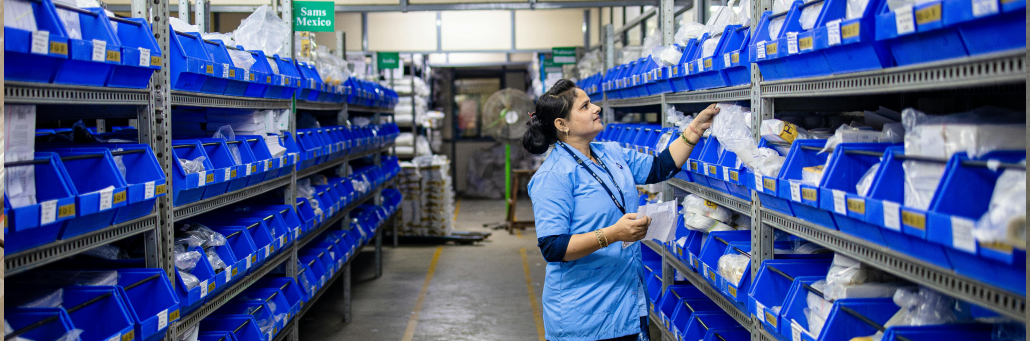
Warehouses are some of the hardest environments for Wi‑Fi: tall ceilings, endless metal racks, moving forklifts, and devices that need to stay online everywhere on the floor. When wireless is unreliable, picking, packing, inventory, and shipping all slow down. This guide explains the key challenges and best practices for designing warehouse Wi‑Fi that actually works day in, day out.

free speed test by Fireline Broadband

warehouse wi-fi

Why Warehouse Wi‑Fi is Challenging

  • Metal racks and machinery reflect and absorb Wi‑Fi signals, creating dead zones and unpredictable coverage.
  • High ceilings and long aisles mean access points may be far from handheld devices, which weakens signal and reduces data rates.
  • Constantly changing inventory alters the RF environment over time—full shelves block signals differently than empty ones.
  • Forklifts, scanners, tablets, and IoT sensors move quickly and need seamless roaming between access points.

Start with a Proper Wireless Site Survey

The most important step in a warehouse Wi‑Fi project is a professional site survey, not guessing and hanging a few access points where they “look right.” The most important step in a warehouse Wi‑Fi project is a real site survey, not guessing. Skipping this is how you end up with a network that looks good on paper but fails on the floor.

A good warehouse survey should:

  • Map the full layout
    Include aisles, rack heights, wall materials, mezzanines, chillers/freezers, offices, and loading docks.
  • Identify RF obstacles and interference
    Note metal racks, machinery, conveyors, overhead cranes, neighboring Wi‑Fi, cordless phones, and other radio systems.
  • Measure signal at device height
    Test at the height of handheld scanners and forklift mounts, not only up at the ceiling.
  • Simulate real use
    Walk typical pick routes and forklift paths while measuring signal, noise, and roaming between APs.
  • Produce heat maps
    Use survey software to visualize coverage, overlap, and dead zones so you can place APs intentionally—not just where a cable is convenient.

Design Around Aisles and Rack Patterns

In a warehouse, you don’t design for square footage; you design for aisles.

When placing access points:

  • Treat each aisle as its own “street”
    Plan coverage so every aisle has consistent signal along its length instead of relying on signal bleeding through multiple rows of racks.
  • Aim down the aisles
    Ceiling‑mounted APs centered over aisles, looking down the length, usually perform better than APs pointing across rows of metal.
  • Use directional antennas where needed
    In very tall or dense environments, semi‑directional or narrow‑beam antennas can push signal down an aisle while reducing interference with adjacent aisles.
  • Avoid “Swiss cheese” coverage
    Don’t assume signal will magically punch through stacked pallets and thick racks; build intentional overlap so if one AP fails or a rack moves, devices still have another option.

warehouse wi-fi

Choose the Right Bands, Channels, and Power Levels

Channel planning and power settings matter as much as access point count.

Key guidelines:

  • Use both 2.4 GHz and 5 GHz (and 6 GHz where available), but favor the higher bands for capacity and cleaner spectrum.
  • Prefer 20 MHz channels in busy environments to limit co‑channel interference.
  • Don’t run all APs at maximum transmit power—this encourages sticky clients and excessive overlap. Power should be tuned so devices roam when they should.
  • Turn off unnecessary SSIDs. Every extra SSID adds overhead and reduces throughput, especially on 2.4 GHz.
  • Periodically review channel assignments; warehouse RF changes as inventory and neighbors change.

warehouse wi-fi

Choose the Right Bands, Channels, and Power Levels

Channel planning and power settings matter as much as access point count.

Key guidelines:

  • Use both 2.4 GHz and 5 GHz (and 6 GHz where available), but favor the higher bands for capacity and cleaner spectrum.
  • Prefer 20 MHz channels in busy environments to limit co‑channel interference.
  • Don’t run all APs at maximum transmit power—this encourages sticky clients and excessive overlap. Power should be tuned so devices roam when they should.
  • Turn off unnecessary SSIDs. Every extra SSID adds overhead and reduces throughput, especially on 2.4 GHz.
  • Periodically review channel assignments; warehouse RF changes as inventory and neighbors change.
warehouse wi-fi

Choose the Right Bands, Channels, and Power Levels

Channel planning and power settings matter as much as access point count.

Key guidelines:

  • Use both 2.4 GHz and 5 GHz (and 6 GHz where available), but favor the higher bands for capacity and cleaner spectrum.
  • Prefer 20 MHz channels in busy environments to limit co‑channel interference.
  • Don’t run all APs at maximum transmit power—this encourages sticky clients and excessive overlap. Power should be tuned so devices roam when they should.
  • Turn off unnecessary SSIDs. Every extra SSID adds overhead and reduces throughput, especially on 2.4 GHz.
  • Periodically review channel assignments; warehouse RF changes as inventory and neighbors change.

Design for Roaming, Not Just Coverage

It’s not enough that each spot has “some” signal. Devices must roam smoothly as they move.

To support clean roaming:

  • Ensure deliberate overlap
    Adjacent APs should have planned overlap so devices can see a strong neighbor before the current AP becomes weak.
  • Standardize SSIDs and security
    Use a single SSID per device group across the warehouse, with consistent security settings, so clients don’t have to “think” about which network to join.
  • Tune roaming thresholds on critical devices
    Where possible, adjust handheld scanners or voice devices to roam sooner instead of clinging to a weak AP.
  • Test while moving
    Have technicians walk and drive normal routes with real devices, watching for drops and stalls. Lab tests in a breakroom don’t reveal roaming issues in long aisles.

Use Industrial‑Grade Hardware and Centralized Management

Warehouses are rough on equipment and staff. Your Wi‑Fi gear needs to handle it.

Consider:

  • Industrial or hardened access points
    Choose access points rated for dust, temperature swings, and vibration—especially for freezer or high‑bay areas.
  • Proper enclosures and mounting
    Use secure mounts and, where required, protective enclosures so APs aren’t knocked loose by forklifts or pallets.
  • Centralized management
    A controller or cloud‑managed platform lets you monitor all APs, push configuration changes, and see where clients are struggling.
  • Segmented networks
    Separate SSIDs and VLANs for scanners, corporate laptops, guest devices, and IoT help keep traffic isolated and easier to troubleshoot.

Build for redundancy and future growth

Warehouse networks rarely stay static. Plan for tomorrow.

To support clean roaming:

  • Avoid single points of failure
    Don’t leave a critical zone served by only one AP; if it dies or a rack moves, that area goes dark.
  • Leave room for more devices
    Design assuming more scanners, tablets, and robots will be added. A network that’s at 90% capacity on day one is already underbuilt.
  • Consider redundant uplinks
    For sites where downtime is expensive, add backup internet and redundant switches so a single failure doesn’t take the entire WLAN offline.
  • Re‑survey periodically
    After major layout changes—or even annually—run a lighter survey to confirm coverage and roaming still look good.

Common Warehouse Wi‑Fi Mistakes

Avoiding a few common pitfalls will save you a lot of pain:

  • Copying an office Wi‑Fi design into a warehouse.
  • Putting APs wherever it’s easiest to pull cable instead of where RF modeling says they should go.
  • Relying only on 2.4 GHz with wide channels “for more speed,” which often backfires.
  • Adding more APs to “fix” problems without understanding the interference they create.
  • Skipping user testing with real scanners and workflows before calling the project done.

A Simple Design Checklist

When you’re planning or refreshing warehouse Wi‑Fi, use this quick checklist:

  •  Professional site survey completed (predictive and/or on‑site).
  •  AP placements planned around aisles, racks, and device height.
  •  Channel and power plan documented and tested.
  •  Roaming validated with real devices on real routes.
  •  Hardware rated for warehouse conditions and mounted securely.
  •  Network segmented by device type and traffic needs.
  •  Redundancy and capacity planned for future growth.

factors when picking a business internet provider

A warehouse doesn’t have to be a Wi‑Fi nightmare. With a survey‑driven design, proper AP placement, smart channel planning, and the right hardware, you can build a wireless network that keeps scanners, forklifts, and staff connected—even in the toughest RF environments.

Ready for a dedicated lane?
Schedule a no-obligation Connectivity Consultation with our team. We’ll analyze your current performance and provide a clear recommendation tailored to how your business actually uses the internet.

Call our business team:877-347-3147
Learn more about our Dedicated Business Internet

Warehouse Wi-Fi FAQ

What makes warehouse Wi‑Fi harder than office Wi‑Fi?

Warehouses are filled with tall metal racks, machinery, long aisles, and moving forklifts, all of which reflect or block wireless signals. High ceilings and constantly changing inventory also make it harder to maintain consistent coverage and performance compared to a typical office.

Why is a professional wireless site survey so important in a warehouse?

A site survey maps your aisles, rack heights, wall materials, and interference sources so access points can be placed intentionally instead of by guesswork. Without a survey, you’re likely to end up with dead zones, roaming issues, and an expensive network that still fails on the warehouse floor.

How should access points be placed in a warehouse?

It’s best to design around aisles, not just square footage. Access points are usually mounted on the ceiling and aimed down the aisles, sometimes with directional antennas, so each aisle has reliable signal along its length instead of relying on Wi‑Fi to pass through multiple rows of metal racks.

Which Wi‑Fi bands and channels work best in warehouses?

Most warehouses use both 2.4 GHz and 5 GHz (and 6 GHz if available), but favor the higher bands for capacity and cleaner spectrum. Narrower channels (like 20 MHz) and carefully tuned transmit power help reduce interference and keep devices from clinging to distant access points.

What does it mean to “design for roaming” in a warehouse?

Designing for roaming means planning intentional overlap between access points and using consistent SSIDs and security so devices can move smoothly without dropping connections. Roaming must be tested with real scanners and forklifts on real routes, not just in a lab or office.

Do I really need industrial‑grade Wi‑Fi hardware for a warehouse?

Yes, in most cases. Warehouses expose equipment to dust, temperature swings, vibration, and occasional impacts from pallets or lifts. Industrial‑rated access points, proper mounting, and protective enclosures help keep the network stable and reduce unexpected failures.

How can I build redundancy into warehouse Wi‑Fi?

Avoid covering critical areas with only one access point, and design overlapping coverage so a single hardware failure or layout change doesn’t create a dead zone. For high‑value operations, consider redundant switches and backup internet so the entire WLAN doesn’t go offline from a single upstream issue.

What are the most common mistakes in warehouse Wi‑Fi deployments?

Common mistakes include copying an office Wi‑Fi design, placing Access Points where cabling is easiest instead of where RF modeling recommends, relying only on 2.4 GHz with wide channels, “fixing” problems by adding more APs without a plan, and skipping testing with actual warehouse devices and workflows.

How often should warehouse Wi‑Fi be reviewed or re‑surveyed?

You should revisit your design after major layout changes or at least every year or two. As inventory, rack layouts, and neighboring networks change, a fresh survey helps confirm that coverage, roaming, and channel plans still match how the warehouse operates today.